> ## Documentation Index
> Fetch the complete documentation index at: https://auth0.com/llms.txt
> Use this file to discover all available pages before exploring further.

<AgentInstructions>

## Submitting Feedback

If you encounter incorrect, outdated, or confusing documentation on this page, submit feedback:

POST https://auth0.com/feedback

```json
{
  "path": "/docs/authenticate/database-connections/passkeys",
  "feedback": "Description of the issue"
}
```

Only submit feedback when you have something specific and actionable to report.

</AgentInstructions>

# Passkey Authentication for Database Connections

> Learn about passkeys as an authentication method and how they work on Auth0.

export const ReleaseStageNotice = ({feature, stage, plans, contact, terms}) => {
  const stageTextMap = {
    "beta": "Beta",
    "ea": "Early Access"
  };
  const stageText = stageTextMap[stage] || "a product release stage";
  const prsLink = "/docs/troubleshoot/product-lifecycle/product-release-stages";
  const linkify = (text, url) => {
    return <a href={url} target="_blank" rel="noreferrer" class="link">{text}</a>;
  };
  const includeDetails = (plans, contact, terms) => {
    const hasDetails = terms || plans || contact;
    if (!hasDetails) return null;
    return <span data-as="p">
            {plans && <>This feature is available for {linkify(`${plans} plans`, "https://auth0.com/pricing")}. </>}
            {contact && "To participate, contact " + contact + ". "}
            {terms && <>By using this feature, you agree to the applicable Free Trial terms in Okta's {linkify("Master Subscription Agreement", "https://www.okta.com/legal")}.</>}
        </span>;
  };
  return <Warning>
            <span data-as="p">
                <strong>The {feature} feature is in {linkify(stageText, prsLink)}.</strong>
            </span>

            {includeDetails(plans, contact, terms)}
        </Warning>;
};

Passkeys are a secure, passwordless authentication method modeled on the [FIDO2 (WebAuthn and CTAP) standards](https://en.wikipedia.org/wiki/WebAuthn). They have several advantages over traditional identifier/password authentication:

* **Passkeys let users authenticate with biometrics or device-bound credentials** (like a fingerprint, PIN, or pattern), so login is faster and doesn't require remembering a password.

* **Passkeys synchronize credentials across devices** so users don't need to re-enroll on each new device.

* **Passkeys are resistant to phishing** because they use public key cryptography, so there are no shared secrets, and the user's device generates unique keys for every account.

* **Passkeys support more reliable recovery** because the stored credentials can survive the loss of an originating device.

* **Passkeys bind credentials to a specific domain** so users can authenticate across an entire domain with a single passkey.

To learn more about passkeys, read [the FIDO Alliance passkey overview](https://fidoalliance.org/passkeys).

## About passkeys on Auth0

Auth0 supports passkeys as an authentication method for database connections with three methods of implementation depending on the kind of application:

* Universal Login passkeys for web-based applications
* [Embedded Login native applications](/docs/authenticate/passwordless/implement-login/embedded-login/native)
* [Native passkeys for Android and iOS applications](/docs/authenticate/database-connections/passkeys/native-passkeys-for-mobile-applications)

Auth0 has a limit of 20 passkeys per user.

When you enable passkeys for your database connection, passkeys become available for users during sign-up and login.

<AccordionGroup>
  <Accordion title="Sign-up flow preview">
    <Steps>
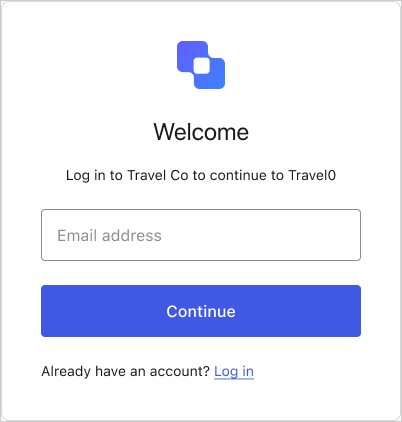
      <Step title="The sign-up UI prompts the user for their email address.">
        <Frame>
          <img src="https://mintlify.s3.us-west-1.amazonaws.com/auth0/docs/images/cdy7uua7fh8z/5SlpzscSseNOuJlvhOgBqr/318d95254ef48197a32e58c92be00d2b/signup-passkey_default.png" alt="" />
        </Frame>

        The user enters their email address and selects **Continue**.
      </Step>

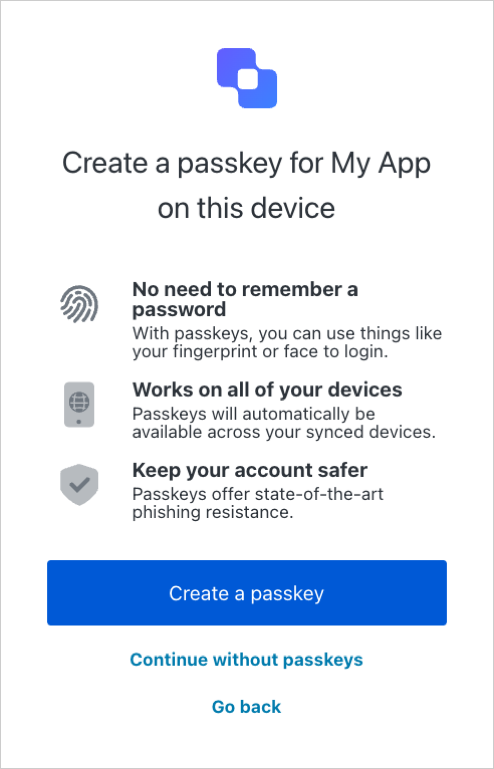
      <Step title="The sign-up UI prompts the user to use passkeys.">
        <Frame>
          <img src="https://mintlify.s3.us-west-1.amazonaws.com/auth0/docs/images/cdy7uua7fh8z/7vZK4q4iUtxyld1Os6og4s/c6df982f684824ef9f11a7ef9a477700/Passkeys_-_UL_-_English.png" alt="" />
        </Frame>

        The user selects **Create a passkey**.
      </Step>

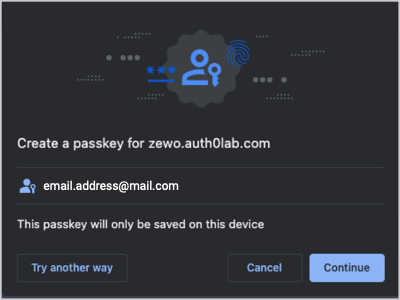
      <Step title="The user's credential manager prompts them to create a passkey.">
        <Frame>
          <img src="https://mintlify.s3.us-west-1.amazonaws.com/auth0/docs/images/cdy7uua7fh8z/IsWmSXNHc2fvRuEgn5DpK/52b2464e21c8dc68bb06869126043ba9/Signup_-_Passkey_-_Browser_OS_Create_a_Passkey.png" alt="" />
        </Frame>

        <Columns cols={2}>
          <div>
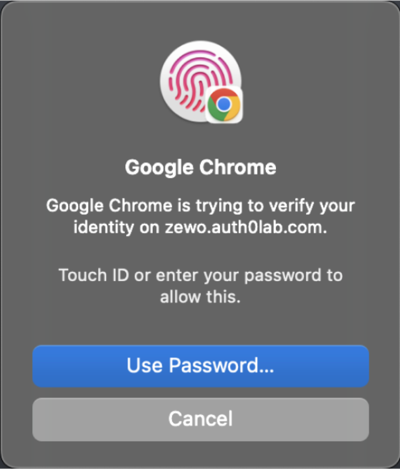
            If the user selects **Continue**, it prompts them to authenticate with their device's credentials.
            <Frame caption="Example device credential authentication prompt">
              <img src="https://mintlify.s3.us-west-1.amazonaws.com/auth0/docs/images/cdy7uua7fh8z/6OJlPQrWBhgO8izXXoKbOw/a3c1af9a94aaeffc50793e3e9b88db8f/Signup_-_Passkeys_-_Chrome_Prompt_for_Device_Credentials.png" alt="" />
            </Frame>
          </div>

          <div>
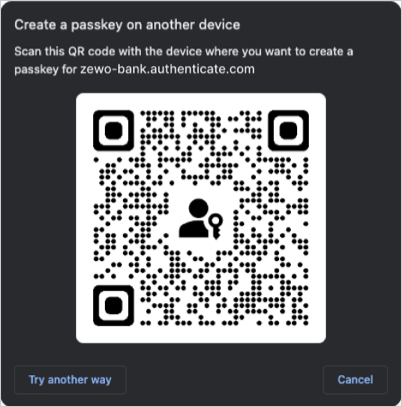
            If the user selects **Try another way**, it prompts them to scan a QR code with the device where they want to create the passkey.
            <Frame caption="Example QR code">
              <img src="https://mintlify.s3.us-west-1.amazonaws.com/auth0/docs/images/cdy7uua7fh8z/2yXrkVbYLxxp6MXnrZLqVN/5f67ddf9b8003729a11604a3af3e553d/passkey-browser-cross-device.png" alt="" />
            </Frame>
          </div>
        </Columns>
      </Step>
    </Steps>
  </Accordion>

  <Accordion title="Login flow preview">
    <Steps>
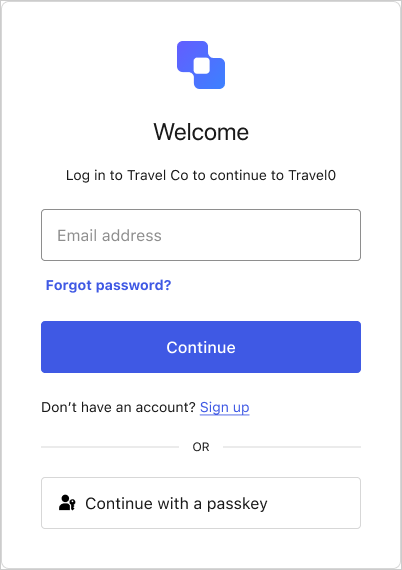
      <Step title="The login UI prompts the user for their email address and/or a passkey.">
        Your database connection's passkey policy lets you choose whether the login UI allows autofill, displays the passkey button, or both.

        <Frame>
          <img src="https://mintlify.s3.us-west-1.amazonaws.com/auth0/docs/images/cdy7uua7fh8z/3qqI3Uo1z1yQhvb7boQ0cx/820f38ffdec77388331ef238ff80de88/login-passkey_default.png" alt="" />
        </Frame>

        If the user enters their email, autofill suggests their stored passkeys alongside other credentials, like passwords.

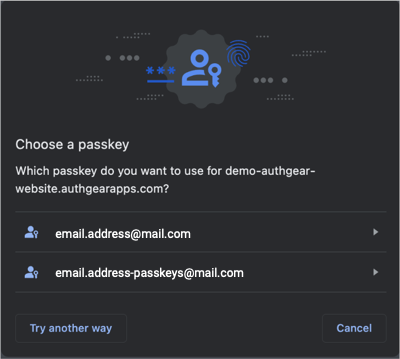
        If the user selects the **Continue with a passkey** button, their credential manager prompts them to choose which passkey to use.
        <Frame>
          <img src="https://mintlify.s3.us-west-1.amazonaws.com/auth0/docs/images/cdy7uua7fh8z/tC4UZmYFgo7Zjt9kviP9j/690b87af58068c18a4609c8e9431e5b7/Login_-_Passkeys_-_Choose_a_passkey.png" alt="" />
        </Frame>
      </Step>

      <Step title="The user's credential manager prompts them to authenticate with their device credentials.">
        <Frame caption="Example device credential authentication prompt">
          <img src="https://mintlify.s3.us-west-1.amazonaws.com/auth0/docs/images/cdy7uua7fh8z/6OJlPQrWBhgO8izXXoKbOw/a3c1af9a94aaeffc50793e3e9b88db8f/Signup_-_Passkeys_-_Chrome_Prompt_for_Device_Credentials.png" alt="" />
        </Frame>
      </Step>
    </Steps>
  </Accordion>
</AccordionGroup>

Passkeys do not replace or invalidate a user's existing credentials. When a user creates their passkey, it is added to their account as an authentication method, but any existing email/username and password credentials remain valid.

### Passkeys with MFA enabled

If <Tooltip tip="Multi-factor authentication (MFA): User authentication process that uses a factor in addition to username and password such as a code via SMS." cta="View Glossary" href="/docs/glossary?term=MFA">MFA</Tooltip> is enabled, the user may be prompted to complete an MFA challenge after authenticating with a passkey based on settings and risk assessment.

The default behavior is to require the completion of an MFA challenge regardless if the authentication method used was a password or a passkey. Given the high level of security passkeys provide, you may skip MFA for users that have authenticated with a passkey in order to reduce friction. This can be achieved by using a post-login Action.

To learn more, read [Reduce friction with passkeys](/docs/customize/actions/explore-triggers/signup-and-login-triggers/login-trigger#reduce-friction-with-passkeys) and [Multi-Factor Authentication](/docs/secure/multi-factor-authentication).

### Passkeys with Multiple Custom Domains (MCD)

<ReleaseStageNotice feature="Multiple Custom Domains" stage="ea" plans="Enterprise" terms="true" />

If you have Multiple Custom Domains enabled on your tenant, Auth0 maintains a one-to-one relationship between a domain and the passkey for that domain. Users with a passkey-enabled database can sign up and log in with a passkey, tied to the specific domain it was created on. Users can enroll a passkey for only one domain (the first one they enroll with, among the multiple custom domains on the tenant).

For passwordless login, the selected custom domain should be reflected in the Magic Link for the passwordless login flow.

### Relying party ID for Passkeys

The [relying party identifier (RP ID)](https://www.w3.org/TR/webauthn-2/#relying-party-identifier) is a domain that WebAuthn binds to credentials like passkeys. The RP ID defines which request origins are allowed for authentication.

<Callout icon="file-lines" color="#0EA5E9" iconType="regular">
  Your application’s domain must be added to the **Allowed Origins (CORS)** list in your [application settings](https://manage.auth0.com/#/applications) for the RP ID to work correctly.
</Callout>

Defining the RP ID as a suffix of the origin lets users authenticate across subdomains using one passkey. For example, if your web application is served at `login.example.com` and your native application is served at `app.example.com`, you can configure the RP ID to `example.com` so end users can authenticate both applications (and any other `example.com` subdomain) with a single passkey.

| Environment | Root Domain                 | RP ID         |
| :---------- | :-------------------------- | :------------ |
| Web         | `https://login.example.com` | `example.com` |
| iOS         | `app.example.com`           | `example.com` |
| Android     | `assetlinks.json`           | `example.com` |

With Auth0, you can customize the RP ID to the root or parent domain so users can authenticate on mobile applications or web applications using the same passkey. If you're using Multiple Custom Domains, you can also set `rp.id` for each custom domain.

To learn how to customize the RP ID, read [Configure Passkey Policy](/docs/authenticate/database-connections/passkeys/configure-passkey-policy).

## Learn more

* [Configure Passkey Authentication](/docs/authenticate/database-connections/passkeys/configure-passkey-policy)
* [Monitor Passkey Events in Tenant Logs](/docs/authenticate/database-connections/passkeys/monitor-passkey-events-in-tenant-logs)
