> ## Documentation Index
> Fetch the complete documentation index at: https://auth0.com/llms.txt
> Use this file to discover all available pages before exploring further.
## Submitting Feedback
If you encounter incorrect, outdated, or confusing documentation on this page, submit feedback:
POST https://auth0.com/feedback
```json
{
"path": "/docs/authenticate/passwordless/implement-login/universal-login",
"feedback": "Description of the issue"
}
```
Only submit feedback when you have something specific and actionable to report.
> Describes how to implement Passwordless authentication with Universal Login.
# Passwordless Authentication with Universal Login
[Universal Login](/docs/authenticate/login/auth0-universal-login) is Auth0's implementation of the login flow. Each time a user needs to prove their identity, your applications redirect to Universal Login and Auth0 will do what is needed to guarantee the user's identity. It's the preferred way to implement Passwordless Authentication.
To implement Passwordless Authentication in Universal Login you need to customize the login page's HTML.
1. Go to [Dashboard > Branding > Universal Login](https://manage.auth0.com/#/login_settings) and click **Advanced Options**.
2. Click the **Login** tab, then enable the **Customize Login Page** toggle.
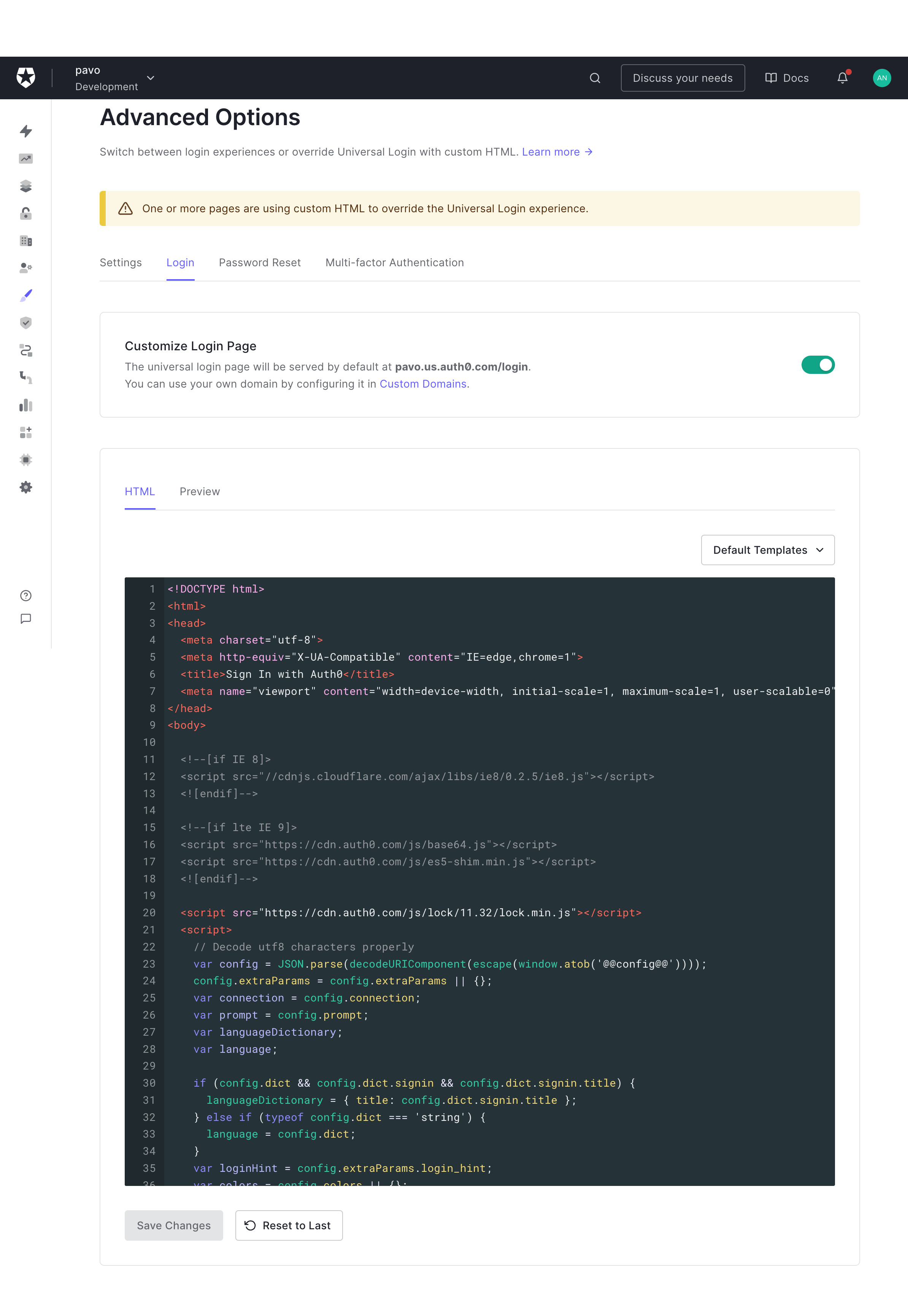 3. From the Default Template drop-down menu, choose the **Custom Login Form** template. The HTML template will update with code using CSS and the Auth0.js SDK.
4. Use HTML and CSS to customize the template to your specifications, and click **Save Changes**. To learn more about how to use the Auth0.js SDK with the **Custom Login Form** template, see [Auth0.js SDK](/docs/libraries/auth0js).
5. Select the **Preview** tab to review your changes. Make sure to select the correct application for which you want to preview the login page.
To integrate Universal Login in your application, please refer to our [Quickstarts](/docs/quickstarts), where you'll find complete examples for all application types and popular platforms.
## Learn more
* [Auth0 Universal Login](/docs/authenticate/login/auth0-universal-login)
* [Customize](/docs/customize)
3. From the Default Template drop-down menu, choose the **Custom Login Form** template. The HTML template will update with code using CSS and the Auth0.js SDK.
4. Use HTML and CSS to customize the template to your specifications, and click **Save Changes**. To learn more about how to use the Auth0.js SDK with the **Custom Login Form** template, see [Auth0.js SDK](/docs/libraries/auth0js).
5. Select the **Preview** tab to review your changes. Make sure to select the correct application for which you want to preview the login page.
To integrate Universal Login in your application, please refer to our [Quickstarts](/docs/quickstarts), where you'll find complete examples for all application types and popular platforms.
## Learn more
* [Auth0 Universal Login](/docs/authenticate/login/auth0-universal-login)
* [Customize](/docs/customize)