> ## Documentation Index
> Fetch the complete documentation index at: https://auth0.com/llms.txt
> Use this file to discover all available pages before exploring further.
## Submitting Feedback
If you encounter incorrect, outdated, or confusing documentation on this page, submit feedback:
POST https://auth0.com/feedback
```json
{
"path": "/docs/secure/multi-factor-authentication/auth0-guardian",
"feedback": "Description of the issue"
}
```
Only submit feedback when you have something specific and actionable to report.
> Describes how Guardian works and how the Guardian SDK helps you build your own authenticator and Guardian-like applications.
# Auth0 Guardian
Auth0 Guardian is a mobile application for iOS and Android devices that allows users to complete [multi-factor authentication (MFA)](/docs/secure/multi-factor-authentication) with push notifications or temporary one-time passwords.
Auth Guardian can deliver push notifications to users’ enrolled devices (typically mobile phones or tablets) or generate one-time passwords directly within the app. Users can then quickly respond to these push notifications or retrieve a one-time password to complete their login.
Users can download the Auth0 Guardian app from the [Apple App Store](https://apps.apple.com/us/app/auth0-guardian/id1093447833) or the [Google Play Store](https://play.google.com/store/apps/details?id=com.auth0.guardian). Alternatively, you can embed Auth0 Guardian capabilities in your own custom app using the Guardian SDK.
## Push Notifications
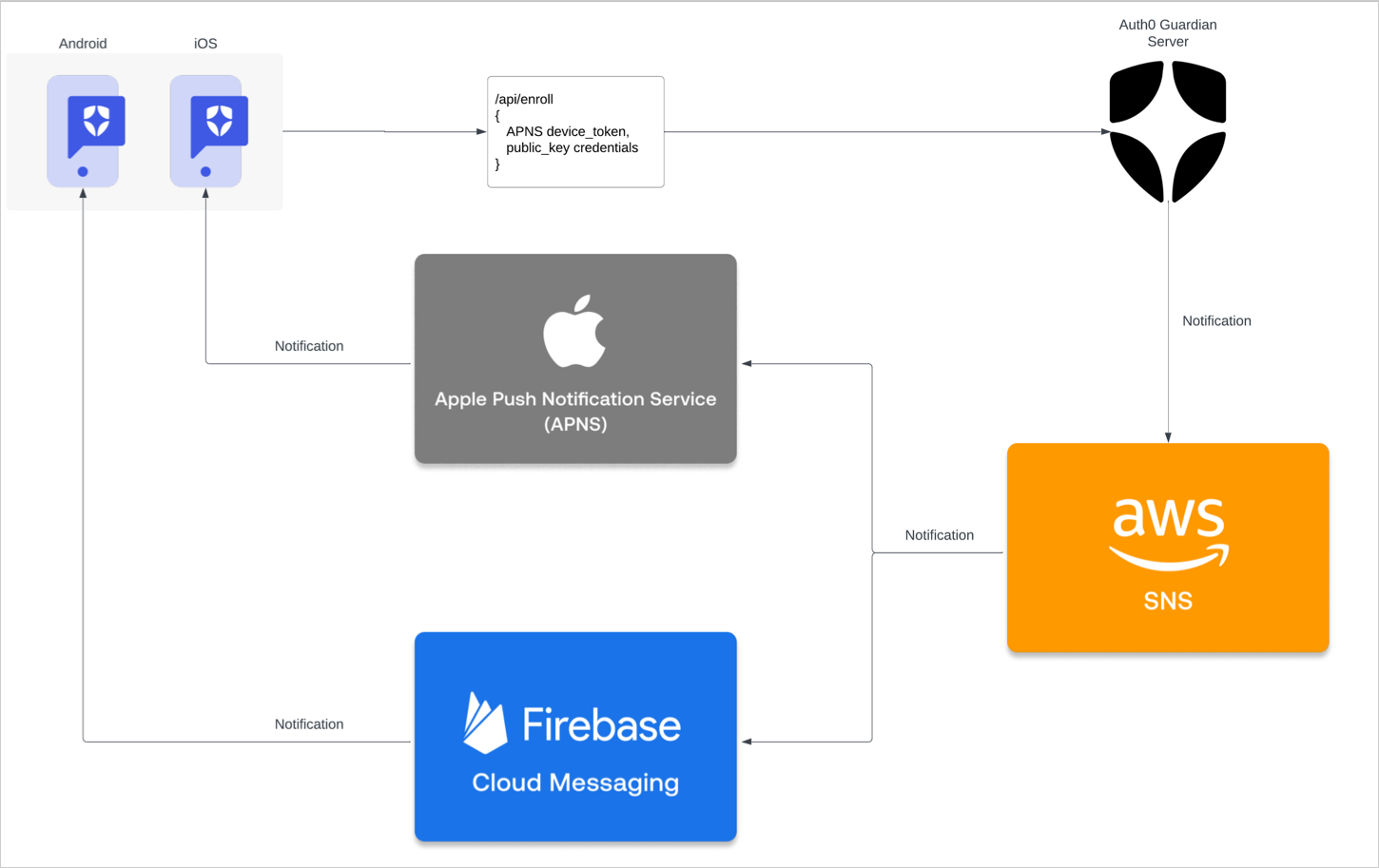
In order to use push notifications, users must have either the Auth0 Guardian app or a custom app built with the Guardian SDK installed on their device. When a user attempts to authenticate, push notifications are sent to the installed app. The user must respond to the notification to complete their login, proving they both know their login information and possess the device set up for MFA.
Auth0 push notifications can be implemented using AWS Simple Notification Service (SNS) or one or more of the following direct-to-vendor services to configure vendor-specific integrations:
* Firebase Cloud Messaging (FCM)
* To learn more about modifying push notification content, review [FCM's documentation](https://firebase.google.com/docs/cloud-messaging/concept-options).
* Apple Push Notification (APN)
* To learn more about modifying push notification content, review [Apple's documentation](https://developer.apple.com/documentation/usernotifications/modifying-content-in-newly-delivered-notifications).
 ### Enroll in push notifications
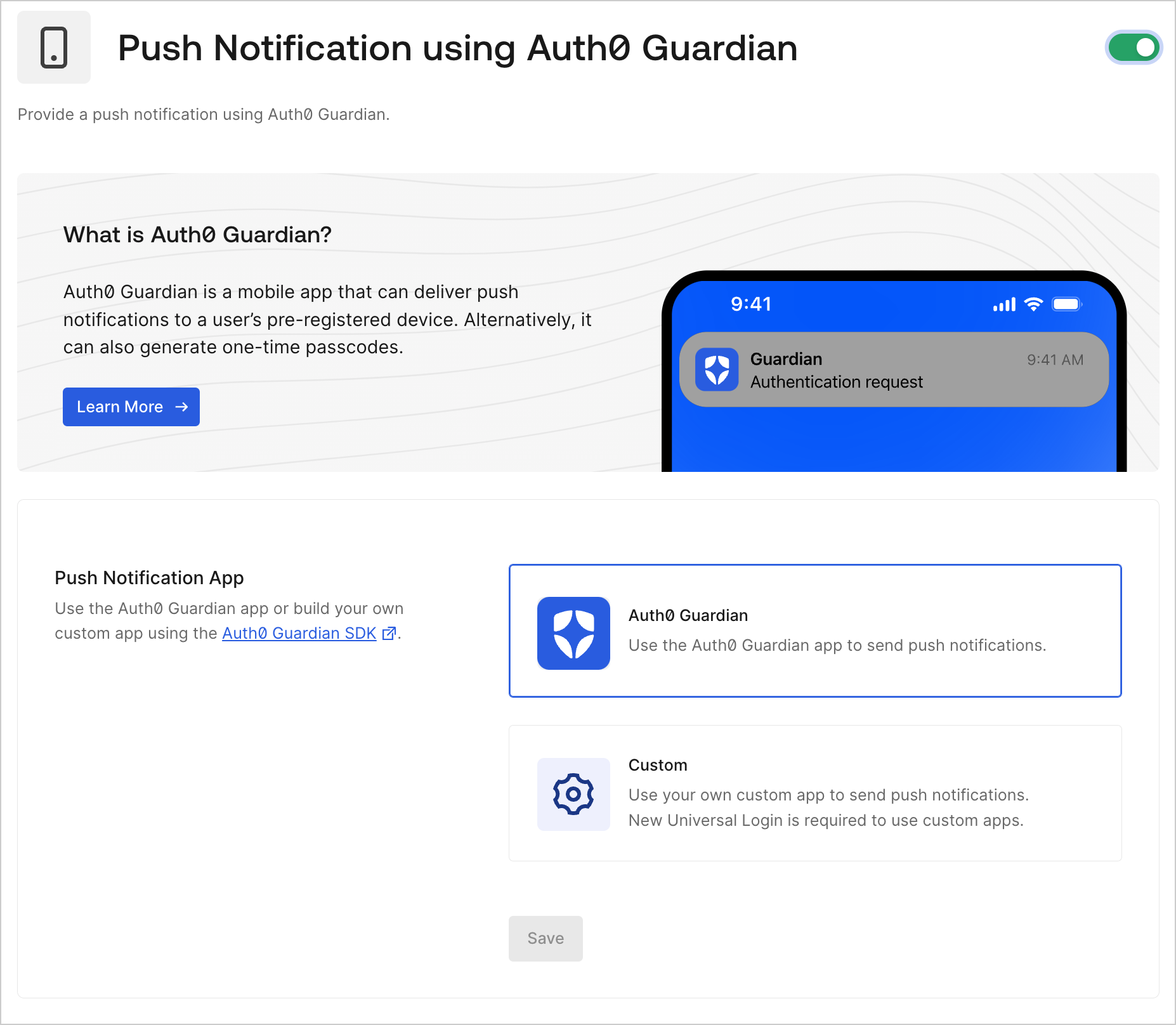
When you use Auth0 Guardian to configure push notifications, users are prompted to download the mobile app when they first sign up or log in to your application. If you use the Guardian SDK to implement push notifications in a custom app, users are not prompted to download any applications during enrollment.
You can enable push notifications from the Auth0 Dashboard under [Security > Multi-factor Auth > Push Notification using Auth0 Guardian](https://manage.auth0.com/#/security/mfa/guardian).
### Enroll in push notifications
When you use Auth0 Guardian to configure push notifications, users are prompted to download the mobile app when they first sign up or log in to your application. If you use the Guardian SDK to implement push notifications in a custom app, users are not prompted to download any applications during enrollment.
You can enable push notifications from the Auth0 Dashboard under [Security > Multi-factor Auth > Push Notification using Auth0 Guardian](https://manage.auth0.com/#/security/mfa/guardian).
 When a user first signs up or logs in to your application, [Universal Login](/docs/authenticate/login/auth0-universal-login) provides a QR code they can use to register the Auth0 Guardian app or custom Guardian SDK app as a secondary authentication factor. The user has a short amount of time to scan this code with the designated app to complete their enrollment.
After the user enrolls, they can use push notifications as an authentication factor. Whenever the user attempts to log in to your application, they will receive a push notification on their device via the Auth0 Guardian or custom Guardian SDK app. The user must approve this request to successfully log in to your application.
To learn how to reset MFA for users who have lost their devices or recovery codes, review [Reset Multi-Factor Authentication and Recovery Codes](/docs/secure/multi-factor-authentication/reset-user-mfa).
## Temporary one-time passwords
The Auth0 Guardian app and the Guardian SDK also support the use of temporary one-time passwords (OTPs) as secondary authentication factors. Both the app and the SDK can generate temporary OTPs that users can use to complete Universal Login MFA challenges.
By default, the Auth0 Guardian app lists the user’s enrolled applications. After selecting an application, the corresponding OTP for that application displays. Each 6-digit OTP remains valid for 30 seconds. OTPs that are nearing expiration display in red. Upon expiration, the app immediately generates a new OTP. To avoid failed authentications, users should not use any red OTPs
In custom Guardian SDK apps, OTP appearance may vary.
### Use temporary one-time passwords
You can leverage OTPs in two primary ways:
* As a fallback option to push notifications in the event that the Auth0 Guardian app or other custom app does not receive a push request.
* As an MFA challenge, if you enable the [One-Time Password factor](/docs/secure/multi-factor-authentication/multi-factor-authentication-factors) in your tenant.
If a user does not receive a push notification through the Auth0 Guardian or other custom app, they can use a temporary OTP to complete their MFA challenge instead.
**Example user flow**:
1. A user attempts to log in to your application. They reach the Universal Login MFA prompt but do not receive a push notification.
2. On the MFA prompt, the user selects the **Manually Enter Code** button. The user must select this option to authenticate using OTPs.
When a user first signs up or logs in to your application, [Universal Login](/docs/authenticate/login/auth0-universal-login) provides a QR code they can use to register the Auth0 Guardian app or custom Guardian SDK app as a secondary authentication factor. The user has a short amount of time to scan this code with the designated app to complete their enrollment.
After the user enrolls, they can use push notifications as an authentication factor. Whenever the user attempts to log in to your application, they will receive a push notification on their device via the Auth0 Guardian or custom Guardian SDK app. The user must approve this request to successfully log in to your application.
To learn how to reset MFA for users who have lost their devices or recovery codes, review [Reset Multi-Factor Authentication and Recovery Codes](/docs/secure/multi-factor-authentication/reset-user-mfa).
## Temporary one-time passwords
The Auth0 Guardian app and the Guardian SDK also support the use of temporary one-time passwords (OTPs) as secondary authentication factors. Both the app and the SDK can generate temporary OTPs that users can use to complete Universal Login MFA challenges.
By default, the Auth0 Guardian app lists the user’s enrolled applications. After selecting an application, the corresponding OTP for that application displays. Each 6-digit OTP remains valid for 30 seconds. OTPs that are nearing expiration display in red. Upon expiration, the app immediately generates a new OTP. To avoid failed authentications, users should not use any red OTPs
In custom Guardian SDK apps, OTP appearance may vary.
### Use temporary one-time passwords
You can leverage OTPs in two primary ways:
* As a fallback option to push notifications in the event that the Auth0 Guardian app or other custom app does not receive a push request.
* As an MFA challenge, if you enable the [One-Time Password factor](/docs/secure/multi-factor-authentication/multi-factor-authentication-factors) in your tenant.
If a user does not receive a push notification through the Auth0 Guardian or other custom app, they can use a temporary OTP to complete their MFA challenge instead.
**Example user flow**:
1. A user attempts to log in to your application. They reach the Universal Login MFA prompt but do not receive a push notification.
2. On the MFA prompt, the user selects the **Manually Enter Code** button. The user must select this option to authenticate using OTPs.
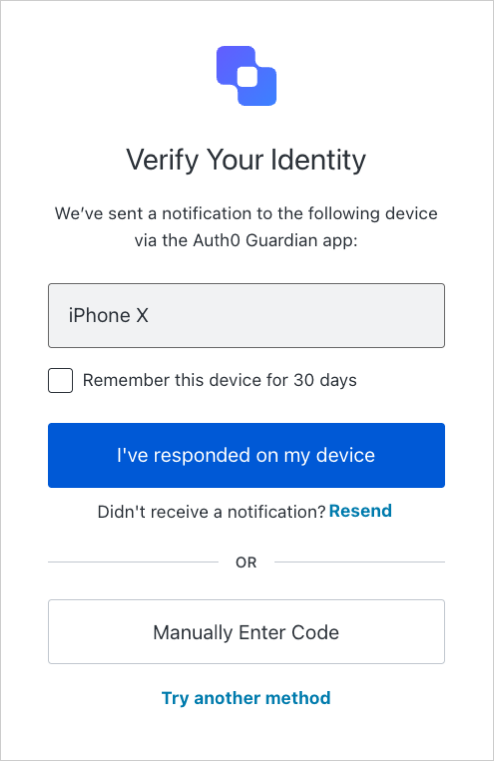 3. The user opens the Auth0 Guardian or custom Guardian SDK app and selects the application they are attempting to access.
4. The user copies the OTP displayed at the bottom of the Account Detail page.
5. The user enters the OTP in the MFA prompt to complete the challenge.
To allow users to authenticate with OTPs, you must enable **One-Time Password** as an [MFA factor](/docs/secure/multi-factor-authentication/multi-factor-authentication-factors) for your tenant. Once enabled, users can complete MFA prompts using OTPs when logging in through Universal Login. To enable MFA factors, navigate to your [Auth0 Dashboard > Security > Multi-factor Auth](https://manage.auth0.com/#/security/mfa).
Users can enroll in OTP as an MFA factor when first signing up or logging in to your application. Depending on the type of device used, [Universal Login](/docs/authenticate/login/auth0-universal-login) displays one of the following:
* **For non-mobile devices**: Universal Login presents a QR code the user can scan to continue enrollment.
3. The user opens the Auth0 Guardian or custom Guardian SDK app and selects the application they are attempting to access.
4. The user copies the OTP displayed at the bottom of the Account Detail page.
5. The user enters the OTP in the MFA prompt to complete the challenge.
To allow users to authenticate with OTPs, you must enable **One-Time Password** as an [MFA factor](/docs/secure/multi-factor-authentication/multi-factor-authentication-factors) for your tenant. Once enabled, users can complete MFA prompts using OTPs when logging in through Universal Login. To enable MFA factors, navigate to your [Auth0 Dashboard > Security > Multi-factor Auth](https://manage.auth0.com/#/security/mfa).
Users can enroll in OTP as an MFA factor when first signing up or logging in to your application. Depending on the type of device used, [Universal Login](/docs/authenticate/login/auth0-universal-login) displays one of the following:
* **For non-mobile devices**: Universal Login presents a QR code the user can scan to continue enrollment.
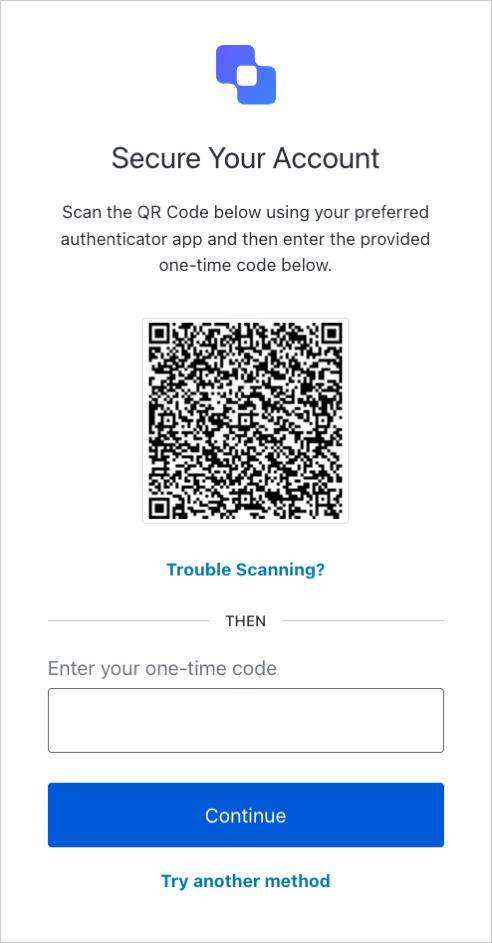 * **For mobile devices**: Universal Login skips the QR code and instead displays the enrollment code directly.
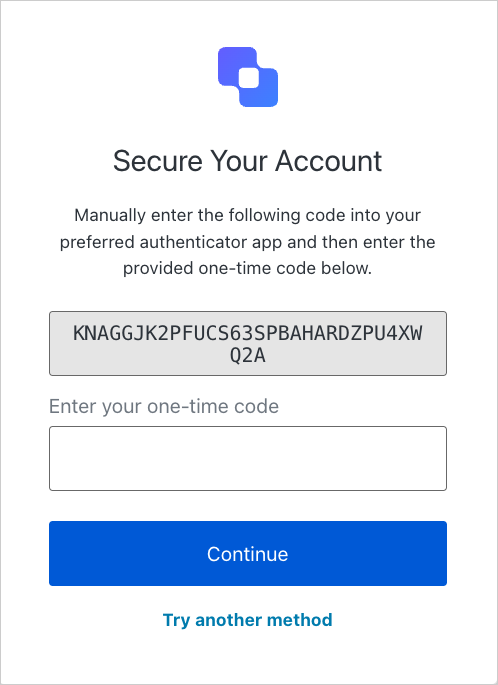 Through either method, users can follow the steps on screen to register either the Auth0 Guardian app or a custom Guardian SDK app as their secondary authentication factor. Typically, this process involves having the user add your application to the appropriate app and retrieving the resulting OTP for that application. The user then enters the OTP into the Universal Login prompt to finish the enrollment process.
The next time the user attempts to log in to your application after completing enrollment, they can authenticate by entering an OTP from their Auth0 Guardian or custom Guardian SDK app into the challenge.
## Auth0 Guardian app settings
### User security settings
In the Auth0 Guardian app, users can enable passcodes and biometrics as layers of app security on iOS and Android. If a user enables one or more of these options, they must complete these challenges before they can respond to push notifications or retrieve one-time passwords.
To enable these options on iOS or Android devices, users can follow the steps below.
To enable security settings for the Auth0 Guardian app on iOS:
1. In the app, select the **gear icon** to open the Settings menu.
2. Select **Passcode** to enable passcode protection.
3. Set and confirm a 6-digit passcode.
The app is now protected by the passcode. The user must enter this passcode before they can respond to push notifications or retrieve OTPs.
After enabling passcode protection, the user can configure device biometrics as an alternate security measure. To enable device biometrics:
1. In the app, select the **gear icon** to open the Settings menu.
2. Enable device biometrics by selecting one of the available options, such as **Face ID** or **Touch ID**.
To enable security settings for the Auth0 Guardian app on Android:
1. In the app, select the **three-dot menu** to open the Settings menu.
2. Enable the switch for the **Always Ask for Passphrase** option.
3. Enter the passphrase that was set while setting up the Auth0 Guardian app.
The app is now protected by the Auth0 Guardian passphrase. The user must enter this passphrase before they can respond to push notifications or retrieve OTPs.
After enabling passphrase protection, the user can configure device biometrics as an alternate security measure. To enable device biometrics:
1. In the app, select the **three-dot menu** to open the Settings menu.
2. Enable the switch for the **Use Biometrics to unlock** option.
### Localization options
The Auth0 Guardian app supports localization for multiple languages and dialects on iOS and Android.
In the Language section of the Settings menu, users can select their preferred language. By default, the app uses the same language as the device system.
The majority of push notification content displays to users in their preferred language. However, the titles of push notifications are not translated as language settings are not retrieved until after a title is populated.
The Auth0 Guardian app supports the following languages and dialects:
| Language | Code |
| ----------------------- | -------- |
| Albanian | `sq` |
| Amharic | `am` |
| Arabic\* | `ar` |
| Arabic (Egypt)\* | `ar-EG` |
| Arabic (Saudi Arabia)\* | `ar-SA` |
| Armenia | `hy` |
| Azerbaijani | `az` |
| Basque | `eu-ES` |
| Bengali | `bn` |
| Bosnian | `bs` |
| Bulgarian | `bg` |
| Catalan | `ca-ES` |
| Chinese - Hong Kong | `zh-HK` |
| Chinese - Simplified | `zh-CN` |
| Chinese - Traditional | `zh-TW` |
| Croatian | `hr` |
| Czech | `cs` |
| Danish | `da` |
| Dutch | `nl` |
| English | `en` |
| English - Canada | `en-CA` |
| Estonian | `et` |
| Farsi (Persian)\* | `fa` |
| Finnish | `fi` |
| French | `fr-FR` |
| French - Canada | `fr-CA` |
| Galician | `gl-ES` |
| Georgian | `ka` |
| German | `de` |
| Greek | `el` |
| Gujrati | `gu` |
| Hebrew\* | `he` |
| Hindi | `hi` |
| Hungarian | `hu` |
| Icelandic | `is` |
| Indonesian | `id` |
| Italian | `it` |
| Japanese | `ja` |
| Kannada | `kn` |
| Korean | `ko` |
| Latvian | `lv` |
| Lithuanian | `lt` |
| Macedonian | `mk` |
| Malay | `ms` |
| Malayalam | `ml` |
| Marathi | `mr` |
| Mongolian | `mn` |
| Montenegrine | `cnr` |
| Myanmar | `my` |
| Norwegian | `no` |
| Norwegian - Bokmål | `nb` |
| Norwegian - Nynorsk | `nn` |
| Polish | `pl` |
| Portuguese - Brazil | `pt-BR` |
| Portuguese - Portugal | `pt-PT` |
| Punjabi | `pa` |
| Romanian | `ro` |
| Russian | `ru` |
| Serbian | `sr` |
| Slovak | `sk` |
| Slovenian | `sl` |
| Somali | `so` |
| Spanish | `es` |
| Spanish - Argentina | `es-AR` |
| Spanish - Latin America | `es-419` |
| Spanish - Mexico | `es-MX` |
| Swahili | `sw` |
| Swedish | `sv` |
| Tagalog | `tl` |
| Tamazight | `zgh` |
| Tamil | `ta` |
| Telugu | `te` |
| Thai | `th` |
| Turkish | `tr` |
| Ukrainian | `uk` |
| Urdu\* | `ur` |
| Vietnamese | `vi` |
| Welsh | `cy` |
### Guardian app themes
The Auth0 Guardian app for both iOS and Android supports light and dark mode themes.
In the Theme section of the Settings menu, users can select the following options:
* **System**: Uses default system theme
* **Light**: Enables the light mode theme
* **Dark**: Enables the dark mode theme
### Customization options for protected applications
To make it easier for users to distinguish between their protected applications in the Auth0 Guardian app, each application can be customized with a distinct name, accent color, and icon.
The default name assigned to your application in the Auth0 Guardian app is determined by your [tenant name](/docs/get-started/tenant-settings/find-your-tenant-name-or-tenant-id) or the Friendly Name set in your [tenant settings](/docs/get-started/tenant-settings). Similarly, the default logo stems from the Logo URL provided in your tenant settings.
To edit your tenant settings, navigate to [Auth0 Dashboard > Settings > General](https://manage.auth0.com/dashboard/#/tenant/general).
To customize a protected application:
1. Select an application from the list.
* **Tip**: You can also swipe left on the application to reveal Edit and Delete options.
2. On the Account Detail page, choose **Edit**.
3. Update the application’s name, color, and icon as needed.
4. Select **Save**.
## Guardian SDKs
You can [install the Guardian SDK](/docs/secure/multi-factor-authentication/multi-factor-authentication-developer-resources/install-guardian-sdk) (available for [iOS](/docs/secure/multi-factor-authentication/auth0-guardian/guardian-for-ios-sdk) and [Android](/docs/secure/multi-factor-authentication/auth0-guardian/guardian-for-android-sdk)) to build your own multi-factor authentication application with complete control over the branding and look-and-feel. With the Guardian SDK, you can build your own custom mobile applications that work like Guardian or integrate some Guardian functionalities, such as receiving push notifications in your existing mobile applications. A typical scenario could be for a banking app. You can use the Guardian SDK in your existing mobile app to receive and confirm push notifications when someone performs an ATM transaction.
## Use Actions to enable Multi-Factor with Auth0 Guardian
To enable Auth0 Guardian within an Action, pass `guardian` as the `provider` parameter when you enable multi-factor authentication:
```js lines theme={null}
exports.onExecutePostLogin = async (event, api) => {
api.multifactor.enable('guardian', { allowRememberBrowser: false });
};
```
To force your users to log in with Auth0 Guardian every time, create the Action with `allowRememberBrowser: false`.
## Multi-Factor with Auth0 Guardian and Authorization Extension
This template provides an example and starting point to trigger multi-factor authentication with Auth0 Guardian for push notifications when a condition is met.
Upon first login, the user can enroll the device. See Enable Multi-Factor Authentication for more information about M
```js lines theme={null}
exports.onExecutePostLogin = async (event, api) => {
const groups = event.user.app_metadata.authorization.groups;
const GROUPS_WITH_MFA = {
// Add groups that need MFA here
// Example
admins: true
};
const needsMFA = !!groups.find(function (group) {
return GROUPS_WITH_MFA[group];
});
if (needsMFA) {
// optional, defaults to true. Set to false to force Guardian authentication every time.
// See https://auth0.com/docs/secure/multi-factor-authentication/customize-mfa#change-frequency-of-mfa-prompts for details
api.multifactor.enable('guardian', { allowRememberBrowser: false });
}
};
```
## Learn more
* [Install Guardian SDK](/docs/secure/multi-factor-authentication/multi-factor-authentication-developer-resources/install-guardian-sdk)
* [Guardian.swift iOS SDK](/docs/secure/multi-factor-authentication/auth0-guardian/guardian-for-ios-sdk)
* [Guardian for Android SDK](/docs/secure/multi-factor-authentication/auth0-guardian/guardian-for-android-sdk)
* [Configure Push Notifications for MFA](/docs/secure/multi-factor-authentication/multi-factor-authentication-factors/configure-push-notifications-for-mfa)
* [Reset User Multi-Factor Authentication and Recovery Codes](/docs/secure/multi-factor-authentication/reset-user-mfa)
* [Guardian Error Code Reference](/docs/secure/multi-factor-authentication/multi-factor-authentication-developer-resources/guardian-error-code-reference)
Through either method, users can follow the steps on screen to register either the Auth0 Guardian app or a custom Guardian SDK app as their secondary authentication factor. Typically, this process involves having the user add your application to the appropriate app and retrieving the resulting OTP for that application. The user then enters the OTP into the Universal Login prompt to finish the enrollment process.
The next time the user attempts to log in to your application after completing enrollment, they can authenticate by entering an OTP from their Auth0 Guardian or custom Guardian SDK app into the challenge.
## Auth0 Guardian app settings
### User security settings
In the Auth0 Guardian app, users can enable passcodes and biometrics as layers of app security on iOS and Android. If a user enables one or more of these options, they must complete these challenges before they can respond to push notifications or retrieve one-time passwords.
To enable these options on iOS or Android devices, users can follow the steps below.
To enable security settings for the Auth0 Guardian app on iOS:
1. In the app, select the **gear icon** to open the Settings menu.
2. Select **Passcode** to enable passcode protection.
3. Set and confirm a 6-digit passcode.
The app is now protected by the passcode. The user must enter this passcode before they can respond to push notifications or retrieve OTPs.
After enabling passcode protection, the user can configure device biometrics as an alternate security measure. To enable device biometrics:
1. In the app, select the **gear icon** to open the Settings menu.
2. Enable device biometrics by selecting one of the available options, such as **Face ID** or **Touch ID**.
To enable security settings for the Auth0 Guardian app on Android:
1. In the app, select the **three-dot menu** to open the Settings menu.
2. Enable the switch for the **Always Ask for Passphrase** option.
3. Enter the passphrase that was set while setting up the Auth0 Guardian app.
The app is now protected by the Auth0 Guardian passphrase. The user must enter this passphrase before they can respond to push notifications or retrieve OTPs.
After enabling passphrase protection, the user can configure device biometrics as an alternate security measure. To enable device biometrics:
1. In the app, select the **three-dot menu** to open the Settings menu.
2. Enable the switch for the **Use Biometrics to unlock** option.
### Localization options
The Auth0 Guardian app supports localization for multiple languages and dialects on iOS and Android.
In the Language section of the Settings menu, users can select their preferred language. By default, the app uses the same language as the device system.
The majority of push notification content displays to users in their preferred language. However, the titles of push notifications are not translated as language settings are not retrieved until after a title is populated.
The Auth0 Guardian app supports the following languages and dialects:
| Language | Code |
| ----------------------- | -------- |
| Albanian | `sq` |
| Amharic | `am` |
| Arabic\* | `ar` |
| Arabic (Egypt)\* | `ar-EG` |
| Arabic (Saudi Arabia)\* | `ar-SA` |
| Armenia | `hy` |
| Azerbaijani | `az` |
| Basque | `eu-ES` |
| Bengali | `bn` |
| Bosnian | `bs` |
| Bulgarian | `bg` |
| Catalan | `ca-ES` |
| Chinese - Hong Kong | `zh-HK` |
| Chinese - Simplified | `zh-CN` |
| Chinese - Traditional | `zh-TW` |
| Croatian | `hr` |
| Czech | `cs` |
| Danish | `da` |
| Dutch | `nl` |
| English | `en` |
| English - Canada | `en-CA` |
| Estonian | `et` |
| Farsi (Persian)\* | `fa` |
| Finnish | `fi` |
| French | `fr-FR` |
| French - Canada | `fr-CA` |
| Galician | `gl-ES` |
| Georgian | `ka` |
| German | `de` |
| Greek | `el` |
| Gujrati | `gu` |
| Hebrew\* | `he` |
| Hindi | `hi` |
| Hungarian | `hu` |
| Icelandic | `is` |
| Indonesian | `id` |
| Italian | `it` |
| Japanese | `ja` |
| Kannada | `kn` |
| Korean | `ko` |
| Latvian | `lv` |
| Lithuanian | `lt` |
| Macedonian | `mk` |
| Malay | `ms` |
| Malayalam | `ml` |
| Marathi | `mr` |
| Mongolian | `mn` |
| Montenegrine | `cnr` |
| Myanmar | `my` |
| Norwegian | `no` |
| Norwegian - Bokmål | `nb` |
| Norwegian - Nynorsk | `nn` |
| Polish | `pl` |
| Portuguese - Brazil | `pt-BR` |
| Portuguese - Portugal | `pt-PT` |
| Punjabi | `pa` |
| Romanian | `ro` |
| Russian | `ru` |
| Serbian | `sr` |
| Slovak | `sk` |
| Slovenian | `sl` |
| Somali | `so` |
| Spanish | `es` |
| Spanish - Argentina | `es-AR` |
| Spanish - Latin America | `es-419` |
| Spanish - Mexico | `es-MX` |
| Swahili | `sw` |
| Swedish | `sv` |
| Tagalog | `tl` |
| Tamazight | `zgh` |
| Tamil | `ta` |
| Telugu | `te` |
| Thai | `th` |
| Turkish | `tr` |
| Ukrainian | `uk` |
| Urdu\* | `ur` |
| Vietnamese | `vi` |
| Welsh | `cy` |
### Guardian app themes
The Auth0 Guardian app for both iOS and Android supports light and dark mode themes.
In the Theme section of the Settings menu, users can select the following options:
* **System**: Uses default system theme
* **Light**: Enables the light mode theme
* **Dark**: Enables the dark mode theme
### Customization options for protected applications
To make it easier for users to distinguish between their protected applications in the Auth0 Guardian app, each application can be customized with a distinct name, accent color, and icon.
The default name assigned to your application in the Auth0 Guardian app is determined by your [tenant name](/docs/get-started/tenant-settings/find-your-tenant-name-or-tenant-id) or the Friendly Name set in your [tenant settings](/docs/get-started/tenant-settings). Similarly, the default logo stems from the Logo URL provided in your tenant settings.
To edit your tenant settings, navigate to [Auth0 Dashboard > Settings > General](https://manage.auth0.com/dashboard/#/tenant/general).
To customize a protected application:
1. Select an application from the list.
* **Tip**: You can also swipe left on the application to reveal Edit and Delete options.
2. On the Account Detail page, choose **Edit**.
3. Update the application’s name, color, and icon as needed.
4. Select **Save**.
## Guardian SDKs
You can [install the Guardian SDK](/docs/secure/multi-factor-authentication/multi-factor-authentication-developer-resources/install-guardian-sdk) (available for [iOS](/docs/secure/multi-factor-authentication/auth0-guardian/guardian-for-ios-sdk) and [Android](/docs/secure/multi-factor-authentication/auth0-guardian/guardian-for-android-sdk)) to build your own multi-factor authentication application with complete control over the branding and look-and-feel. With the Guardian SDK, you can build your own custom mobile applications that work like Guardian or integrate some Guardian functionalities, such as receiving push notifications in your existing mobile applications. A typical scenario could be for a banking app. You can use the Guardian SDK in your existing mobile app to receive and confirm push notifications when someone performs an ATM transaction.
## Use Actions to enable Multi-Factor with Auth0 Guardian
To enable Auth0 Guardian within an Action, pass `guardian` as the `provider` parameter when you enable multi-factor authentication:
```js lines theme={null}
exports.onExecutePostLogin = async (event, api) => {
api.multifactor.enable('guardian', { allowRememberBrowser: false });
};
```
To force your users to log in with Auth0 Guardian every time, create the Action with `allowRememberBrowser: false`.
## Multi-Factor with Auth0 Guardian and Authorization Extension
This template provides an example and starting point to trigger multi-factor authentication with Auth0 Guardian for push notifications when a condition is met.
Upon first login, the user can enroll the device. See Enable Multi-Factor Authentication for more information about M
```js lines theme={null}
exports.onExecutePostLogin = async (event, api) => {
const groups = event.user.app_metadata.authorization.groups;
const GROUPS_WITH_MFA = {
// Add groups that need MFA here
// Example
admins: true
};
const needsMFA = !!groups.find(function (group) {
return GROUPS_WITH_MFA[group];
});
if (needsMFA) {
// optional, defaults to true. Set to false to force Guardian authentication every time.
// See https://auth0.com/docs/secure/multi-factor-authentication/customize-mfa#change-frequency-of-mfa-prompts for details
api.multifactor.enable('guardian', { allowRememberBrowser: false });
}
};
```
## Learn more
* [Install Guardian SDK](/docs/secure/multi-factor-authentication/multi-factor-authentication-developer-resources/install-guardian-sdk)
* [Guardian.swift iOS SDK](/docs/secure/multi-factor-authentication/auth0-guardian/guardian-for-ios-sdk)
* [Guardian for Android SDK](/docs/secure/multi-factor-authentication/auth0-guardian/guardian-for-android-sdk)
* [Configure Push Notifications for MFA](/docs/secure/multi-factor-authentication/multi-factor-authentication-factors/configure-push-notifications-for-mfa)
* [Reset User Multi-Factor Authentication and Recovery Codes](/docs/secure/multi-factor-authentication/reset-user-mfa)
* [Guardian Error Code Reference](/docs/secure/multi-factor-authentication/multi-factor-authentication-developer-resources/guardian-error-code-reference)