
The AVERAGEIF function in Google Sheets calculates the average (mean) of a range of numbers that meet a specified condition. It’s particularly useful when analyzing data selectively based on specific criteria, like averaging sales over a certain threshold or scores for a specific category.
How It Works
- You specify the range to evaluate against the condition.
- Provide the criteria that the values must meet.
- Optionally, define the range to average if it’s different from the criteria range.
- The function scans the range for values matching the requirements and computes the average of the corresponding numbers.
Google Sheets AVERAGEIF Function Syntax
AVERAGEIF(criteria_range, criterion, [average_range])
- criteria_range: The range to evaluate against the criterion.
- criterion: The condition to match (e.g., ">50", "Apple").
- average_range (optional): The range of numbers to average. If omitted, the criteria_range is averaged.
1. How to Use AVERAGEIF Function in Google Sheets
To use the AVERAGEIF function in Google Sheets you need to follow the steps given below:
Step 1: Select the Cell for the Result
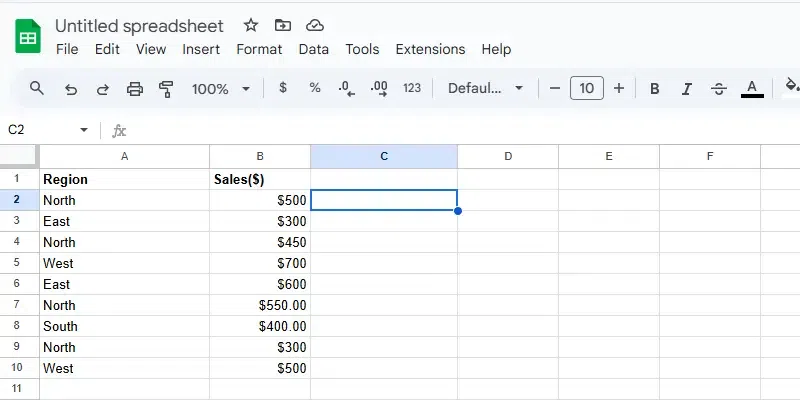
Choose the cell where you want the average result to appear, (e.g., C2).
Step 2: Identify the Data Ranges
Determine the ranges you’ll use in the formula:
- Criteria Range: The range to evaluate against a condition (e.g., A2:A10 for regions).
- Average Range (optional): The range containing the numbers to average (e.g., B2:B10 for sales). If omitted, the Criteria Range will also serve as the Average Range.
Step 3: Define the Criterion
Decide the condition you want to apply. Examples include:
- Specific text value:
"North". - Numerical condition:
">300". - Logical operators: Use conditions like
<=500or<> "South"(not equal to "South")
Step 4: Write the AVERAGEIF Formula
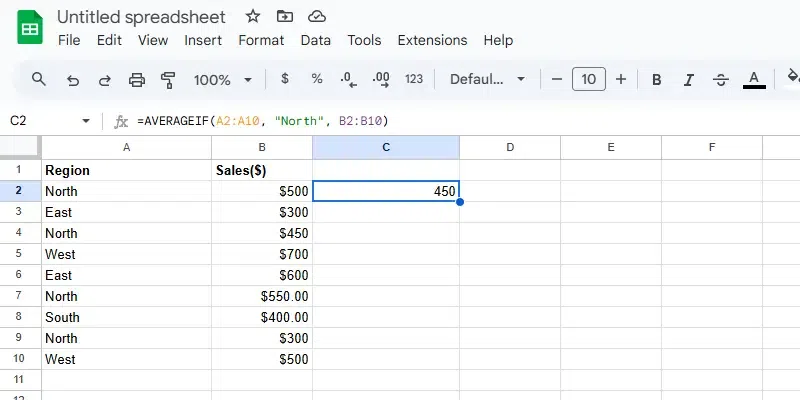
In the selected cell (e.g., C2), enter the formula:
=AVERAGEIF(A2:A10, "North", B2:B10)
Explanation:
- A2:A10: The range to evaluate (e.g., Regions).
- "North": The criterion to match.
- B2:B10 (optional): The range to calculate the average (e.g., Sales).

Step 5: Press Enter
Press Enter to apply the formula. The cell will display the average of the numbers in the Average Range (B2:B10) that correspond to entries in the Criteria Range (A2:A10) meeting the specified condition ("North").
Also Read: