HTML provides the <code> element to display programming code clearly on a webpage, making it visually distinct and easy to read.
- The <code> tag is used to represent computer code snippets in HTML documents.
- It displays text in a monospace font, preserving spacing and formatting for better readability.
- The <code> tag supports global attributes like class, id, and style.
- It also supports event attributes, enabling interaction such as clicks or hover effects.
The <code> tag displays a C program within a <pre> tag, preserving whitespace and formatting. The C program includes the stdio.h> library and a main function that prints "Hello Geeks".
<!DOCTYPE html>
<html>
<head>
<title></title>
</head>
<body>
<pre>
<code>
#include <stdio.h>
int main() {
printf("Hello Geeks");
return 0;
}
</code>
</pre>
</body>
</html>
Syntax:
<code> Computer code contents... </code>Note: The program that is written inside the <code> tag has some different font sizes and font types to the basic heading tag and paragraph tag.
kbd Tag
The <kbd> tag is used to define keyboard input. The text between the `<kbd>` tags represents text that should be typed on a keyboard.
- The <kbd> tag displays text in the browser’s default monospace font.
- It has no specific attributes, but styling can be enhanced using CSS.
Syntax:
<kbd> Contents... </kbd>Example: To demonstrate the implementation of the <kbd> Tag. The <kbd> tag displays keyboard keys "Alt", "+", and "Tab" within the styled text.
<!DOCTYPE html>
<html>
<head>
    <title></title>
    <style>
        body {
            text-align: center;
        }
    </style>
</head>
<body>
    <kbd>Alt </kbd>
    <kbd>+</kbd>
    <kbd>Tab</kbd>
    <span> is used to switch between open apps </span>
</body>
</html>
Output:

Pre Tag
The `<pre>` tag in HTML defines a block of preformatted text, preserving spaces, line breaks, tabs, and other formatting characters that browsers usually ignore.
- The <pre> tag displays text in a fixed-width (monospace) font.
- It requires both opening and closing tags, with styling customizable via CSS.
Syntax:
<pre> Contents... </pre>Example: To demonstrate implementing the <pre> Tag in the HTML computer code elements.
<!DOCTYPE html>
<html>
<head>
    <title></title>
    <style>
        pre {
            font-family: Arial;
            color: #009900;
            margin: 25px;
        }
    </style>
</head>
<body>
    <pre>
        GeeksforGeeks
        A Computer  Science Portal  For Geeks
    </pre>
</body>
</html>
Output:

Samp Tag
The `<samp>` tag is used to define sample output from a computer program. It encloses inline text representing a sample or quoted output from a program.
Syntax:
<samp> Contents... </samp>Example: To demonstrate implementing the <samp> tag in HTML to represent sample output or computer code snippets.
<!DOCTYPE html>
<html>
<head>
    <title></title>
    <style>
        body {
            text-align: center;
        }
        .geeks {
            font-size: 25px;
            font-weight: bold;
        }
    </style>
</head>
<body>
    <div class="geeks"><samp> Tag</div>
    <samp>A computer science portal for Geeks</samp>
</body>
</html>
Output:

Var Tag
The <var> tag is used specifically to highlight programming variables or mathematical expressions, providing context to the text, which is useful for accessibility and search engines. In most browsers, the content of this tag is displayed in italic format.
Syntax:
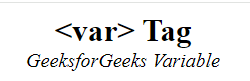
<var> Contents... </var>Example: To demonstrate using the <var> tag in HTML that denotes variables and it is styled to differentiate them from regular text, providing emphasis on their significance within the content.
<!DOCTYPE html>
<html>
<head>
    <title></title>
    <style>
        body {
            text-align: center;
        }
        .geeks {
            font-size: 25px;
            font-weight: bold;
        }
    </style>
</head>
<body>
    <div class="geeks"><var> Tag</div>
    <var>GeeksforGeeks Variable</var>
</body>
</html>
Output: