
A simple counter is a great beginner project that demonstrates how JavaScript interacts with HTML and CSS to update content dynamically. It helps build a strong foundation in event handling and DOM manipulation.
- Increases, decreases, or resets a number using button clicks.
- Uses JavaScript to update values in real time.
- Enhances UI with basic styling using CSS.
Project Preview
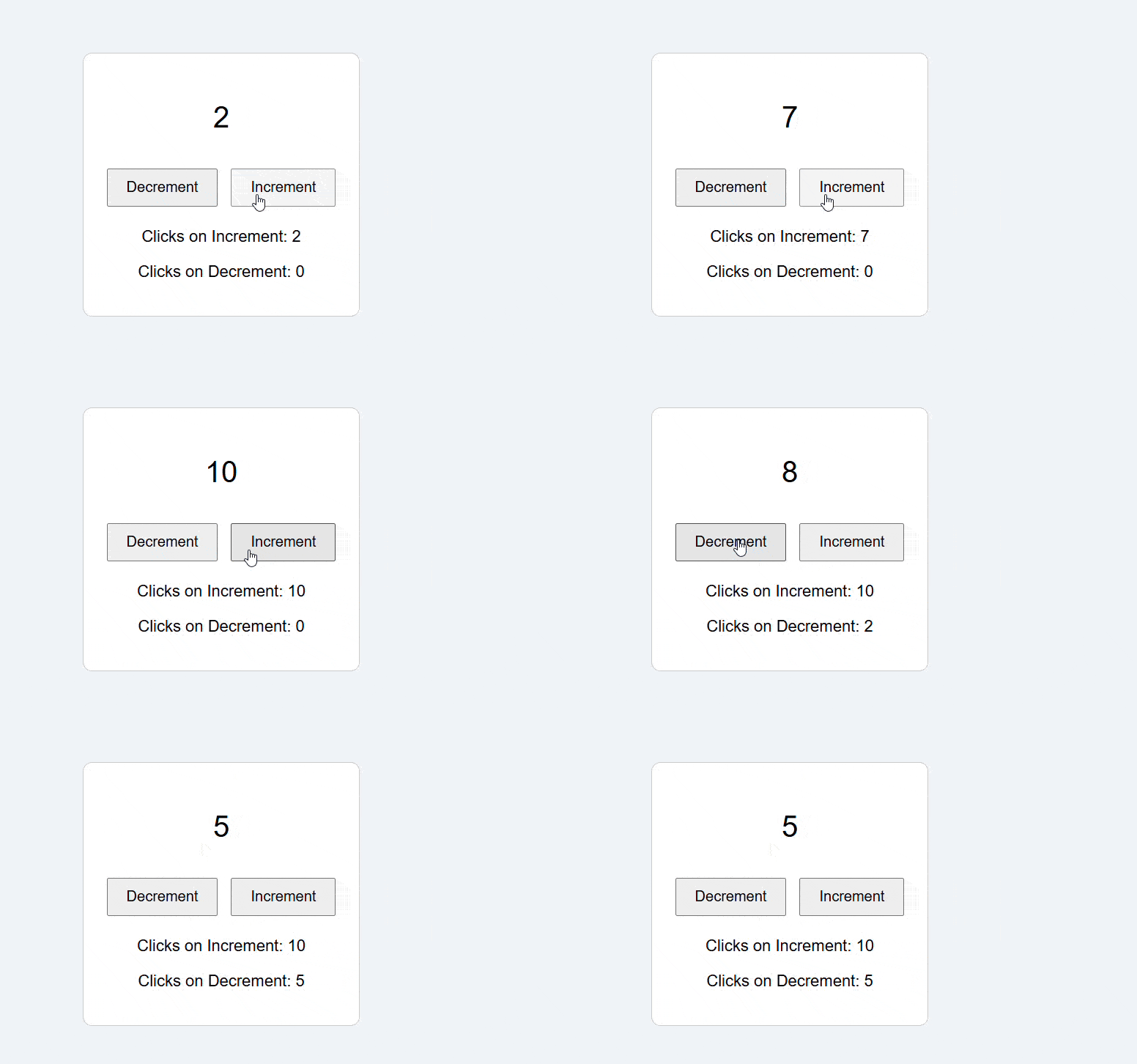
Approach
We will build a simple web application with the following features:
- A counter that displays the current count.
- Buttons to increment and decrement the count.
- Display the number of clicks for both increment and decrement actions, resetting after reaching 10 clicks.
Simple Counter - HTML Setup
<html>
<head></head>
<body>
    <div class="container">
        <div class="counter">
            <p id="count">0</p>
        </div>
        <div>
            <button onclick="dec()">Decrement</button>
            <button onclick="inc()">Increment</button>
        </div>
        <div class="clicks">
            <p>Clicks on Increment: <span id="incCount">0</span></p>
            <p>Clicks on Decrement: <span id="decCount">0</span></p>
        </div>
    </div>
</body>
</html>
- The <div> with class container acts as a wrapper for the application.
- <p> with id="count" displays the current counter value.
- Two <button> elements call the inc() and dec() functions when clicked to modify the counter.
- <span> elements inside <p> tags display the click counts for increment and decrement actions.
Simple Counter - CSS Syles
body {
    font-family: Arial, sans-serif;
    display: flex;
    justify-content: center;
    align-items: center;
    height: 100vh;
    margin: 0;
    background-color: #f0f4f8;
}

.container {
    text-align: center;
    padding: 20px;
    border: 1px solid #ccc;
    border-radius: 10px;
    background-color: #fff;
}

.counter {
    font-size: 2em;
    margin-bottom: 20px;
}

button {
    padding: 10px 20px;
    font-size: 1em;
    margin: 5px;
    cursor: pointer;
}

.clicks {
    font-size: 1.1em;
    margin-top: 10px;
}
- The body is styled to center the application on the screen with a light background.
- The .container styles give the app a card-like appearance with a white background and rounded corners.
- The .counter class increases the font size for better visibility of the counter value.
- The button styles add padding, margin, and a hover effect for user interaction.
- The .clicks class styles the click count display below the buttons.
Simple Counter - JavaScript Logic
The JavaScript for the counter application handles the logic for incrementing and decrementing the counter value. It updates the displayed counter and tracks the number of clicks on the increment and decrement buttons.
function inc() {
    c = (c >= 10) ? 0 : c + 1;
    ci = (ci >= 10) ? 0 : ci + 1;
    update();
}

function dec() {
    c = c > 0 ? c - 1 : 0;
    cd = (cd >= 10) ? 0 : cd + 1;
    update();
}

function update() {
    incCount.textContent = ci;
    decCount.textContent = cd;
    count.textContent = c;
}
- Variables c, ci, and cd represent the counter, increment clicks, and decrement clicks, respectively.
- count, incCount, and decCount store references to the DOM elements that display the counter and click counts.
- The inc() function increments the counter (c) and tracks increment clicks (ci), resetting the click count after 10 clicks.
- The dec() function decrements the counter (c), ensuring it doesn’t go below zero, and tracks decrement clicks (cd), resetting the click count after 10 clicks.
- The update() function updates the displayed values in the DOM.
Complete code
<html>
<head>
    <style>
        body {
            font-family: Arial, sans-serif;
            display: flex;
            justify-content: center;
            align-items: center;
            height: 100vh;
            margin: 0;
            background-color: #f0f4f8;
        }
        .container {
            text-align: center;
            padding: 20px;
            border: 1px solid #ccc;
            border-radius: 10px;
            background-color: #fff;
        }
        .counter {
            font-size: 2em;
            margin-bottom: 20px;
        }
        button {
            padding: 10px 20px;
            font-size: 1em;
            margin: 5px;
            cursor: pointer;
        }
        .clicks {
            font-size: 1.1em;
            margin-top: 10px;
        }
    </style>
</head>
<body>
    <div class="container">
        <div class="counter">
            <p id="count">0</p>
        </div>
        <div>
            <button onclick="dec()">Decrement</button>
            <button onclick="inc()">Increment</button>
        </div>
        <div class="clicks">
            <p>Clicks on Increment: <span id="incCount">0</span></p>
            <p>Clicks on Decrement: <span id="decCount">0</span></p>
        </div>
    </div>
    <script>
        let c = 0, ci = 0, cd = 0;
        const count = document.getElementById("count");
        const incCount = document.getElementById("incCount");
        const decCount = document.getElementById("decCount");
        function inc() {
            c++;
            ci = (ci >= 10) ? 0 : ci + 1;
            update();
        }
        function dec() {
            c = c > 0 ? c - 1 : 0;
            cd = (cd >= 10) ? 0 : cd + 1;
            update();
        }
        function update() {
            count.textContent = c;
            incCount.textContent = ci;
            decCount.textContent = cd;
        }
    </script>
</body>
</html>