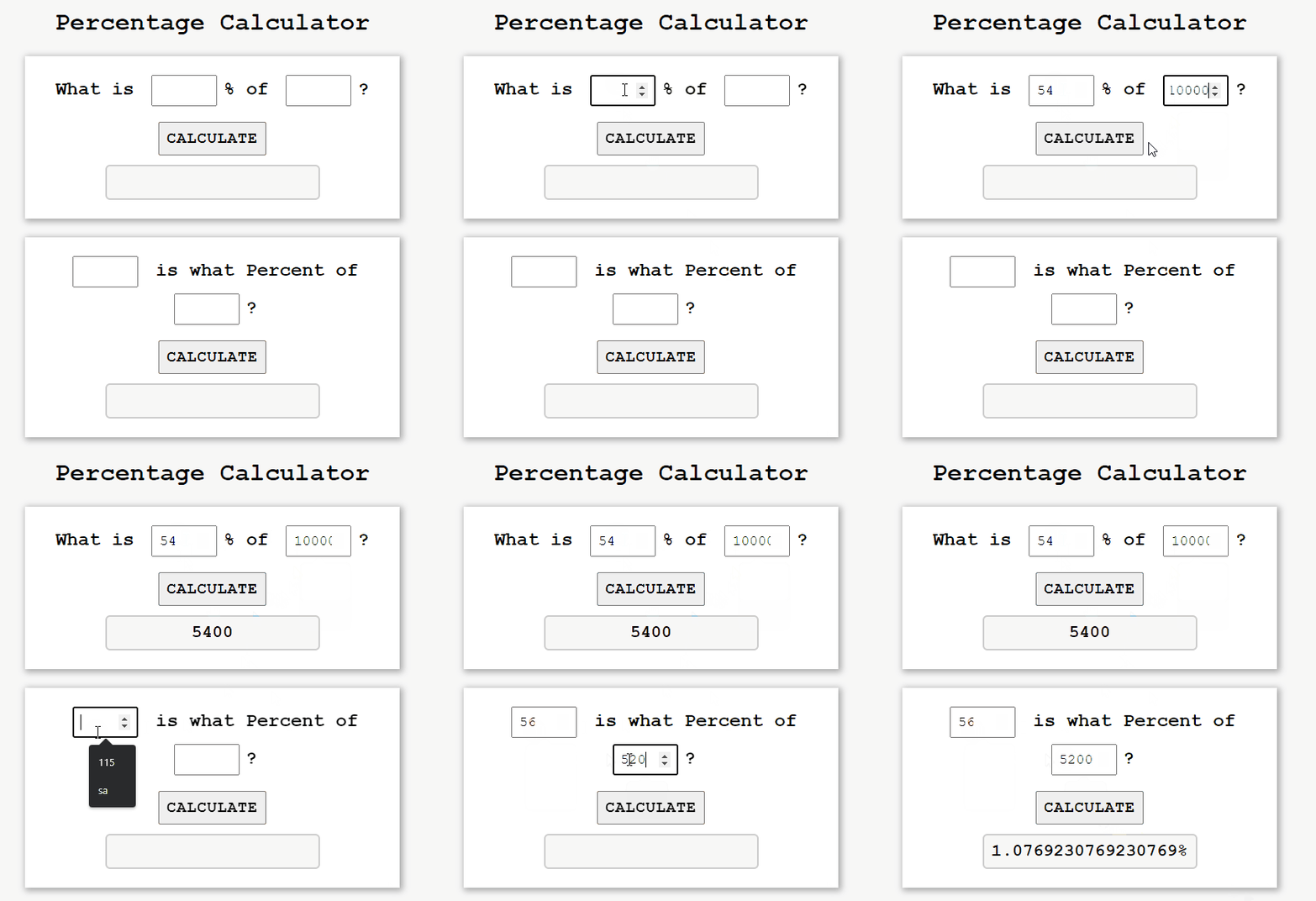
The percentage calculator is useful for students, shopkeepers, and for solving basic mathematical problems related to percentages. In this article, we are going to learn, how to make a percentage calculator using HTML CSS, and JavaScript
Formula used:
- What is X percent of Y is given by the formula: X percent of Y =(X/100)* Y
- X is what percent of Y is given by the formula: X is what percent of Y= (X/Y)×100%, where X, Y > 0
Approach
- Input Retrieval:
- Use
document.getElementById("elementId").valueto get input values.
- Use
- Calculation and Formatting:
percentage_1: Calculate the percentage and set the result in an element.percentage_2: Calculate the percentage, append "%", and set the formatted result in an element.
- DOM Manipulation:
- Use
document.getElementById("elementId").valueto set results in HTML elements.
- Use
- Mathematical Operations:
- Perform basic operations (multiply, divide, add) for percentage calculations.
Example: This example shows the implementation of the above approach.
<!DOCTYPE html>
<html>
<head>
    <link rel="stylesheet" href="style.css" type="text/css" />
</head>
<body>
    <h1>Percentage Calculator</h1>

    <div>
        <h2> What is <input type="number" id="percent" />% of
            <input type="number" id="num" />?
        </h2>
        <button onclick="percentage_1()">Calculate</button><br>
        <input type="text" id="value1" readonly />
    </div>

    <div>
        <h2><input type="number" id="num1" />
            is what Percent of
            <input type="number" id="num2" />?
        </h2>

        <button onclick="percentage_2()">Calculate</button>
          <br>

        <input type="text" id="value2" readonly />
    </div>

    <script type="text/javascript" src="script.js"></script>
</body>

</html>
    /* A margin and padding are provided 0
    box-sizing border box is used to include
    padding and border in the total width
    and height of the element, and font-family
    can be specified by the user */
    * {
        margin: 0;
        padding: 0;
        box-sizing: border-box;
        font-family: 'Courier New', Courier, monospace;
    }

    /* The user display allows you to specify the
    background colour and height. The
    display:flex property, which is aligned at the
    centre, is used to fill available free space
    or to shrink them to prevent overflow. */
    body {
        background-color: #f7f7f7;
        min-height: 100vh;
        display: flex;
        justify-content: center;
        align-items: center;
        flex-direction: column;
    }

    /* font-weight Specifies weight of glyphs
    in the font, their degree of blackness or
    stroke */
    h1 {
        font-weight: 900;
        margin-bottom: 12px;
    }

    div {
        width: 480px;
        background-color: #fff;
        margin: 12px 0;
        padding: 24px;
        text-align: center;
        box-shadow: 2px 2px 8px 2px #aaa;
    }

    input[type=number] {
        width: 84px;
        font-size: 18px;
        padding: 8px;
        margin: 0px 8px 8px 8px;
    }

    /* The text-transform:uppercase property
    causes characters to be raised to uppercase.
    The button's font-weight, font-size, and
    cursor type can be customised by the user. */
    button {
        text-transform: uppercase;
        font-weight: 900;
        font-size: 20px;
        margin: 12px 0;
        padding: 8px;
        cursor: pointer;
        letter-spacing: 1px;
    }

    /* The font-weight, font-size, background-color,
    and border can all be customized by the user.
    The border-radius property allows you to give
    an element rounded corners.*/
    input[type=text] {
        font-size: 22px;
        padding: 8px 0;
        font-weight: 900;
        text-align: center;
        background-color: #f7f7f7;
        border: 2px solid #ccc;
        border-radius: 6px;
    }
function percentage_1() {

    // Method returns the element of percent id
    let percent = document.getElementById("percent").value;

    // Method returns the element of num id
    let num = document.getElementById("num").value;
    document.getElementById("value1")
        .value = (num / 100) * percent;
}

function percentage_2() {

    // Method returns the element of num1 id
    let num1 = document.getElementById("num1").value;

    // Method returns the elements of num2 id
    let num2 = document.getElementById("num2").value;
    document.getElementById("value2")
            .value = (num1 * 100) / num2 + "%";
}
Output