
Java Swing is a GUI (Graphical User Interface) toolkit that is part of the Java Foundation Classes (JFC). It provides a rich set of lightweight components for building desktop applications with a more flexible and feature-rich interface than AWT.
- Provides a wide variety of GUI components such as buttons, labels, tables, and trees.
- Supports a pluggable Look and Feel, allowing applications to have a customized appearance.
- Platform-independent, enabling applications to run consistently across different operating systems.
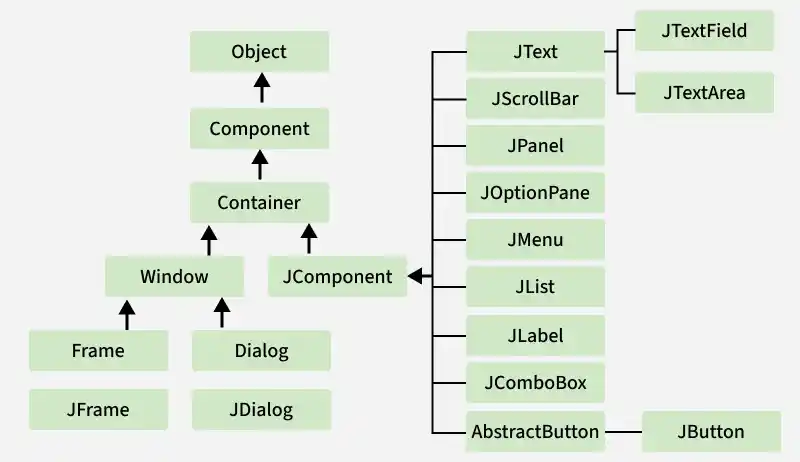
Swing Classes Hierarchy
This diagram illustrates the inheritance hierarchy of Swing classes, showing how core GUI components such as JFrame, JButton, JLabel, JCheckBox, JList, and JProgressBar are derived from base classes like Container and JComponent within the Java Swing framework.
AWT(Abstract Window Toolkit)
AWT is Java's original GUI library used for creating window-based applications. It provides basic components such as buttons, labels, text fields, and menus, and relies on the native operating system's GUI components.
- Part of the java.awt package.
- Uses native platform components, making it platform-dependent in appearance.
- Provides basic GUI controls and event-handling mechanisms.
- Serves as the foundation on which Swing is built.
What is JFC?
JFC stands for Java Foundation Classes. JFC is the set of GUI components that simplify desktop Applications. Many programmers think that JFC and Swing are one and the same thing, but that is not so. JFC contains Swing [A UI component package] and quite a number of other items:
- Cut and paste: Clipboard support.
- Accessibility features: Aimed at developing GUIs for users with disabilities.
- The Desktop Colors Features were first introduced in Java 1.1
- Java 2D: it has Improved colors, images, and text support.
Features Of Swing Class
- Platform Independent : Swing components provide a consistent GUI across different operating systems without depending on native OS controls.
- Lightweight Components : Swing components are written entirely in Java and do not rely on platform-specific system resources.
- Pluggable Look and Feel : Swing allows the appearance of components to be changed dynamically without modifying the application code.
- MVC Architecture : Swing follows the Model-View-Controller (MVC) pattern, separating data, UI, and control logic.
- Highly Customizable : Swing components can be easily customized to match specific application requirements.
- Rich Set of Controls : Swing provides advanced GUI components such as JTable, JTree, JTabbedPane, and JScrollPane.
- Advanced Event Handling : Swing offers a robust event-handling mechanism to efficiently respond to user actions.
Advantages of Swing over AWT
Swing components provide more flexibility and advanced features compared to AWT components.
- Image Support : Swing components such as buttons and labels can display images along with or instead of text.
- Custom Borders : Borders of Swing components can be easily customized to improve the UI appearance.
- Non-Rectangular Components : Swing allows components such as buttons to have custom shapes, including round buttons.
- Accessibility Support : Swing integrates well with assistive technologies like screen readers, making applications more accessible to users with disabilities.
Example 1: Develop a program using label (swing) to display the message “GFG WEB Site Click”
import java.io.*;
import javax.swing.*;

// Main class
class GFG {

    // Main driver method
    public static void main(String[] args)
    {
        // Creating instance of JFrame
        JFrame frame = new JFrame();

        // Creating instance of JButton
        JButton button = new JButton(" GFG WebSite Click");

        // x axis, y axis, width, height
        button.setBounds(150, 200, 220, 50);

        // adding button in JFrame
        frame.add(button);

        // 400 width and 500 height
        frame.setSize(500, 600);

        // using no layout managers
        frame.setLayout(null);

        // making the frame visible
        frame.setVisible(true);
    }
}
Output:

Example 2: Write a program to create three buttons with caption OK, SUBMIT, CANCEL.
import java.awt.*;

class button {
    button()
    {
        Frame f = new Frame();

        // Button 1 created
        // OK button
        Button b1 = new Button("OK");
        b1.setBounds(100, 50, 50, 50);
        f.add(b1);

        // Button 2 created
        // Submit button
        Button b2 = new Button("SUBMIT");
        b2.setBounds(100, 101, 50, 50);
        f.add(b2);

        // Button 3 created
        // Cancel button
        Button b3 = new Button("CANCEL");
        b3.setBounds(100, 150, 80, 50);
        f.add(b3);

        f.setSize(500, 500);
        f.setLayout(null);
        f.setVisible(true);
    }

    public static void main(String a[]) { new button(); }
}
Output:

Example 3: Program to Add Checkbox in the Frame
import java.awt.*;

// Driver Class
class Lan {
    // Main Function
    Lan()
    {
        // Frame Created
        Frame f = new Frame();

        Label l1 = new Label("Select known Languages");

        l1.setBounds(100, 50, 120, 80);
        f.add(l1);

        // CheckBox created
        Checkbox c2 = new Checkbox("Hindi");
        c2.setBounds(100, 150, 50, 50);
        f.add(c2);

        // CheckBox created
        Checkbox c3 = new Checkbox("English");
        c3.setBounds(100, 200, 80, 50);
        f.add(c3);

        // CheckBox created
        Checkbox c4 = new Checkbox("marathi");
        c4.setBounds(100, 250, 80, 50);
        f.add(c4);

        f.setSize(500, 500);
        f.setLayout(null);
        f.setVisible(true);
    }

    public static void main(String ar[]) { new Lan(); }
}
Output:

Components of Swing Class the task's percentage
| Class | Description |
|---|---|
| Component | A Component is the Abstract base class for about the non-menu user-interface controls of Java SWING. Components are representing an object with a graphical representation. |
| Container | A Container is a component that can container Java SWING Components |
| JComponent | A JComponent is a base class for all swing UI Components In order to use a swing component that inherits from JComponent, the component must be in a containment hierarchy whose root is a top-level Java Swing container. |
| JLabel | A JLabel is an object component for placing text in a container. |
| JButton | This class creates a labeled button. |
| JColorChooser | A JColorChooser provides a pane of controls designed to allow the user to manipulate and select a color. |
| JCheckBox | A JCheckBox is a graphical (GUI) component that can be in either an on-(true) or off-(false) state. |
| JRadioButton | The JRadioButton class is a graphical (GUI) component that can be in either an on-(true) or off-(false) state. in the group |
| JList | A JList component represents the user with the scrolling list of text items. |
| JComboBox | A JComboBox component is Presents the User with a show up Menu of choices. |
| JTextField | A JTextField object is a text component that will allow for the editing of a single line of text. |
| JPasswordField | A JPasswordField object it is a text component specialized for password entry. |
| JTextArea | A JTextArea object is a text component that allows for the editing of multiple lines of text. |
| Imagelcon | A ImageIcon control is an implementation of the Icon interface that paints Icons from Images |
| JScrollbar | A JScrollbar control represents a scroll bar component in order to enable users to Select from range values. |
| JOptionPane | JOptionPane provides set of standard dialog boxes that prompt users for a value or Something. |
| JFileChooser | A JFileChooser it Controls represents a dialog window from which the user can select a file. |
| JProgressBar | As the task progresses towards completion, the progress bar displays the tasks percentage on its completion. |
| JSlider | A JSlider this class is letting the user graphically (GUI) select by using a value by sliding a knob within a bounded interval. |
| JSpinner | A JSpinner this class is a single line input where the field that lets the user select by using a number or an object value from an ordered sequence. |